

DocuSign templates can turn tedious paperwork into a streamlined digital process for any organization. Most people expect the biggest advantage to be speed and convenience. But the real surprise is just how much time can be wasted on the wrong documents if you skip Step One. Focusing only on high-frequency documents that follow consistent patterns can cut manual processing time by almost half. This small shift in focus sets up everything else for success.
Table of Contents
- Step 1: Identify Essential Document Types for Templates
- Step 2: Create Your DocuSign Template from Scratch
- Step 3: Customize Template Fields and Recipient Roles
- Step 4: Save and Test Your DocuSign Template
- Step 5: Implement the Template in Your Workflow
Quick Summary
| Key Point | Explanation |
|---|---|
| 1. Identify high-frequency documents for templates | Focus on documents frequently used with consistent formats, like contracts and onboarding forms, to maximize efficiency. |
| 2. Strategically place fields in templates | Ensure strategic placement of signature lines and input fields for intuitive navigation and lowest error rates. |
| 3. Test the template extensively before use | Conduct real-world scenario tests to identify potential issues in routing and usability before full deployment. |
| 4. Train team members on new templates | Communicate the benefits and provide training to ensure effective implementation and user adoption of the new template. |
| 5. Remain flexible and seek user feedback | Continuously refine templates based on user experiences and changing organizational needs to enhance effectiveness. |
Step 1: Identify Essential Document Types for Templates
Creating effective DocuSign templates begins with a strategic approach to document identification. This crucial first step determines the foundation of your digital documentation workflow, enabling smoother, more consistent processes across your organization.
Starting with a comprehensive review of your current document landscape helps pinpoint which types of documents will benefit most from template standardization. Focus on frequently used documents that follow consistent structural patterns. These might include sales contracts, non-disclosure agreements, employee onboarding forms, purchase orders, or approval requests.
Analyze your organization's regular documentation needs by examining recent document workflows. Look for patterns in document usage that indicate high-volume, repetitive processes. Pay special attention to documents that require multiple stakeholder signatures or follow a predictable approval path. Documents with standardized sections and minimal variation are ideal candidates for DocuSign templates.
When evaluating potential template candidates, consider several key factors. Assess the document's frequency of use, the number of individuals involved in its execution, and the complexity of its typical routing. Legal and compliance documents often make excellent template candidates due to their structured nature and need for consistent formatting.
Below is a checklist table to help verify whether your chosen document types are strong candidates for DocuSign template creation.
| Verification Question | Why It Matters | Ideal Indicator |
|---|---|---|
| Does this document type repeat regularly in our organization? | Ensures high ROI by focusing on recurring processes | Yes, used weekly or monthly |
| Are the document's core sections relatively consistent across different instances? | Supports template standardization with minimal adjustments | Minimal formatting or content changes |
| Would a standardized template reduce manual data entry and potential errors? | Targets documents that benefit most from automation | Substantial time savings, fewer mistakes |
| Can the document's workflow be predictably mapped in advance? | Enables smooth recipient routing and role assignment | Workflow rarely varies |
| Does the document often involve multiple stakeholders or approvals? | Maximizes convenience for multi-step approvals | Involves at least 2 signers or reviewers |
| Is the document subject to strict legal or compliance requirements? | Ensures consistency in handling important paperwork | Yes, regularly audited |
| Would template use improve overall process efficiency? | Confirms the investment is justified | Noticeable speed or accuracy gain |
To verify you've selected appropriate document types, ask yourself these guiding questions:
- Does this document type repeat regularly in our organization?
- Are the document's core sections relatively consistent across different instances?
- Would a standardized template reduce manual data entry and potential errors?
- Can the document's workflow be predictably mapped in advance?
According to Massachusetts Institute of Technology's documentation guidelines, successful template creation starts with understanding your organization's specific communication needs. This means looking beyond surface-level document characteristics and examining deeper workflow requirements.
Remember that not every document needs a template. Focus on high-impact documents that consume significant administrative time when processed manually. By carefully selecting your template candidates, you'll create a more efficient digital documentation strategy that saves time and reduces organizational friction.
Step 2: Create Your DocuSign Template from Scratch
With your essential document types identified, the next critical phase involves crafting a DocuSign template that streamlines your organization's signature workflows. This step transforms your document strategy from conceptual to operational, enabling repeatable and efficient digital document processing.
Begin by logging into your DocuSign account and navigating to the template creation section. Upload the core document you want to convert into a template, ensuring the file is clean, professionally formatted, and free from any sensitive or variable information. PDF and Microsoft Word documents work exceptionally well for template creation.
As you build the template, focus on adding strategic placeholder fields that will guide future document users. These might include signature lines, initial fields, date fields, and dropdown menus for standard selections. Place these fields precisely where signers will need to interact with the document, creating an intuitive user experience that minimizes confusion and potential errors.
Carefully define recipient roles within the template. Generic roles like "Approver" or "Manager" allow flexibility for different users to fill these positions without recreating the entire template. This approach supports scalability and reduces administrative overhead. Consider the typical workflow of your document and arrange recipient fields in the order they would logically receive and sign the document.
To verify your template's effectiveness, perform a test run before finalizing. Send a draft version to a colleague or yourself to confirm all fields function correctly and the document flows as expected. Pay close attention to:
- Field placement and visibility
- Logical signing order
- Clarity of instructions for recipients
- Proper formatting across different devices
According to San Francisco State University's DocuSign guidelines, successful template creation hinges on understanding your organization's specific communication needs. This means looking beyond basic field placement and considering the broader context of how the document will be used.
Save your template with a clear, descriptive name that immediately communicates its purpose to potential users. Include key identifiers like document type, department, or primary use case. This naming convention will help your team quickly locate and utilize the appropriate template when needed, further enhancing your organization's document efficiency.
Step 3: Customize Template Fields and Recipient Roles
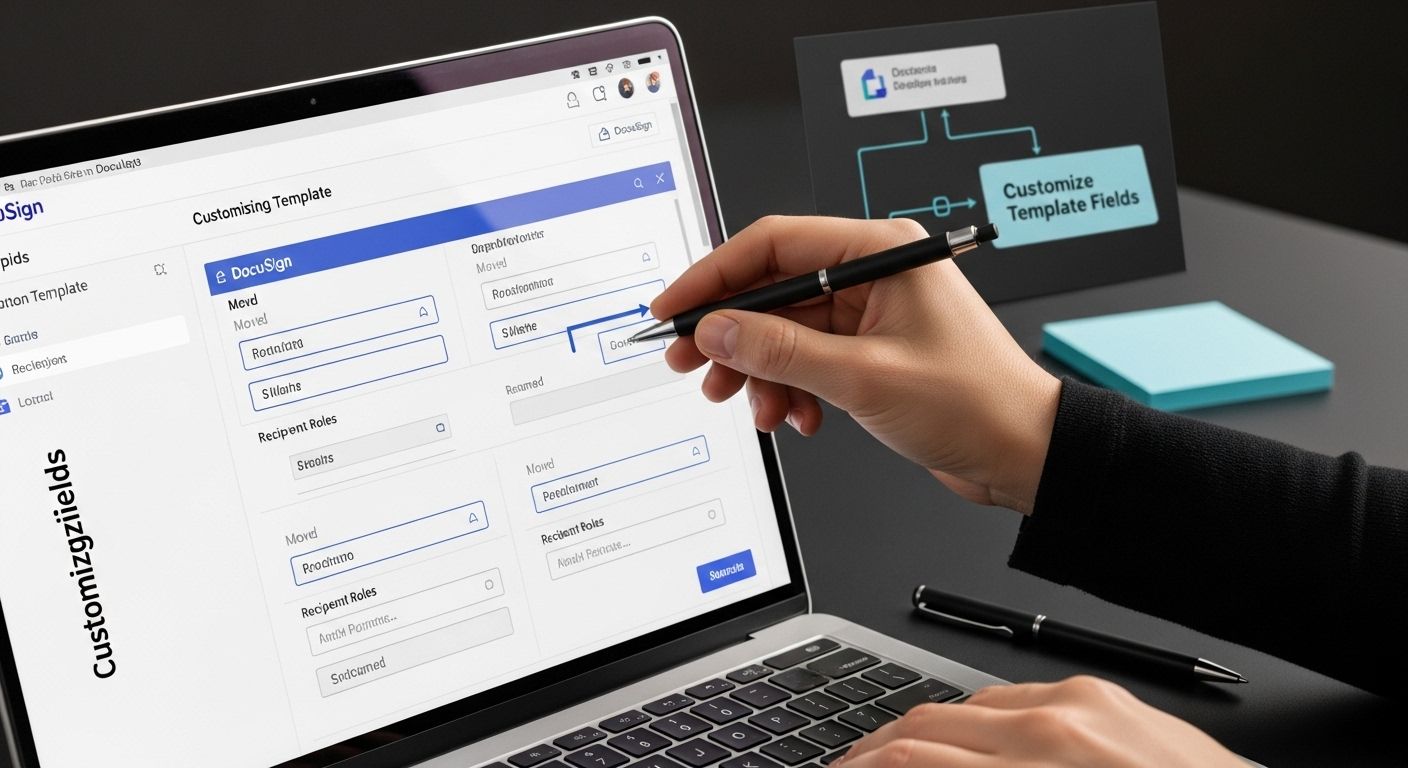
Customizing template fields and recipient roles transforms a basic document into a powerful, dynamic workflow tool. This critical step ensures your DocuSign template becomes a precise instrument for capturing exactly the right information from the right people at the right time.
Begin by strategically mapping out the required input fields for your document. Consider each piece of information necessary for complete and accurate processing. Text fields, checkboxes, dropdown menus, and signature lines should be placed intuitively where recipients naturally expect to provide information. Avoid cluttering the document with unnecessary fields that might confuse or overwhelm signers.
Defining recipient roles requires careful consideration of your organization's specific workflow. Generic roles like "Approver," "Manager," or "Reviewer" provide flexibility while maintaining a clear signing hierarchy. Configure these roles to reflect the actual decision-making process, ensuring documents move seamlessly through your organizational channels. Some recipients might require full editing capabilities, while others need only signing permissions.
Implement smart field logic to create an intelligent, responsive template. This means configuring fields that dynamically show or hide based on previous selections, reducing unnecessary complexity for signers. For instance, a dropdown menu selecting "Business" might reveal additional corporate-specific fields, while "Personal" could trigger a different set of input requirements.
To verify your template's effectiveness, conduct a comprehensive test run. Ask colleagues from different departments to review the template and provide feedback on:
- Field clarity and placement
- Ease of navigation
- Logical flow of information
- Accessibility across different devices
According to University of California, San Francisco's DocuSign guidelines, successful template customization hinges on understanding your specific business processes and creating a workflow that supports, rather than complicates, document execution.
Set clear permissions for each recipient role to maintain document integrity. Some team members might need full editing capabilities, while others should have limited access. This granular control prevents unauthorized changes and ensures your template remains a reliable, consistent tool for document management. Take time to fine-tune these settings, as they are crucial for maintaining both flexibility and security in your digital documentation process.
Step 4: Save and Test Your DocuSign Template
Saving and testing your DocuSign template represents the critical validation phase that transforms your document from a concept to a reliable workflow tool. This step ensures your template functions exactly as intended before deployment across your organization.
Here is an overview table summarizing the five main steps to create and implement a DocuSign template, with primary objectives and outcomes for each phase.
| Step | Main Action | Primary Goal | Expected Outcome |
|---|---|---|---|
| 1 | Identify essential document types | Focus on standardizing high-frequency, consistent documents | Reduced manual processing and errors |
| 2 | Create your DocuSign template | Upload and structure a reusable base document | Streamlined digital signature process |
| 3 | Customize fields and recipient roles | Define specific inputs and workflow participants | Efficient data capture and smooth routing |
| 4 | Save and test your template | Validate naming and functionality before full use | Reliable, error-free template operation |
| 5 | Implement in your workflow | Train team and roll out with support | Increased adoption, faster document turnaround |
When saving your template, choose a clear, descriptive name that immediately communicates its purpose and usage. Include key identifiers like document type, department, or primary function. For example, "Sales_Contract_Template_2023" provides immediate context for anyone accessing the document. Organize your templates into logical folders within your DocuSign account to enhance discoverability and reduce potential confusion.
Testing requires a methodical approach that simulates real-world document routing. Send a test version of the template to yourself and trusted colleagues who can provide honest feedback about usability. Verify each field functions correctly, recipient roles route appropriately, and the overall user experience remains smooth and intuitive. Pay special attention to how the template performs across different devices, including mobile platforms where signatures are increasingly common.
During your test run, simulate various scenarios that might occur in actual document workflows. This means testing edge cases like incomplete submissions, multiple recipient scenarios, and different approval paths. Look for potential friction points that could slow down document processing or create user frustration. Verify that automated routing works seamlessly and that each recipient receives clear instructions about their required actions.
To comprehensively evaluate your template, check for these critical elements:
- All required fields populate correctly
- Recipient roles assign and route as expected
- Electronic signature capture works smoothly
- Document formatting remains consistent across devices
- Error messages and guidance appear appropriately
According to University of California's electronic signature guidelines, thorough testing is essential to ensure document integrity and workflow reliability. This means going beyond surface-level checks to understand how your template performs under various conditions.
Save multiple versions of your template during the testing phase. This allows you to revert to previous iterations if unexpected issues arise and provides a clear audit trail of your template's development. Once you're confident in the template's performance, share it with broader team members for additional validation and potential refinement.
Step 5: Implement the Template in Your Workflow
Implementing your DocuSign template into existing workflows marks the transition from preparation to practical application. This crucial stage transforms your carefully crafted digital document into a functional tool that streamlines organizational processes and reduces administrative overhead.
Communicate the new template's existence and functionality to all relevant team members. Schedule a brief training session or create a concise guidelines document explaining how to use the template, its intended purpose, and any specific instructions for completion. Emphasize the benefits of the new workflow, such as reduced processing time and increased accuracy, to encourage team adoption and enthusiasm.
Integrate the template strategically by identifying the specific touchpoints within your current business processes where it will be most effective. Map out the exact steps and individuals involved in document routing, ensuring everyone understands their role in the new workflow. Consider how the template will interact with existing systems, such as your customer relationship management (CRM) platform or internal communication tools.
Gradually roll out the template, starting with a pilot group or specific department. This approach allows you to gather real-world feedback and make necessary adjustments before full-scale implementation. Monitor the template's performance closely during this initial phase, tracking metrics like document completion time, error rates, and user satisfaction.
Prepare for potential challenges by establishing a clear support mechanism. Designate a point person or team responsible for addressing questions, troubleshooting issues, and providing guidance to template users. Create a simple reference guide or FAQ document that team members can easily access when they encounter difficulties.
To ensure successful implementation, verify the following key indicators:
- All necessary team members can access the template
- Document routing functions smoothly
- Signatures and data capture occur correctly
- Completion times have decreased
- User feedback is predominantly positive
According to Arizona State University's workflow documentation guidelines, successful template implementation requires careful preparation and ongoing monitoring. Learn more about optimizing workflow integrations to further enhance your document management process.
Remain flexible and open to continuous improvement. Templates are not static documents but evolving tools that should adapt to changing organizational needs. Regularly solicit feedback from users and be prepared to make iterative refinements that enhance the template's effectiveness and user experience.
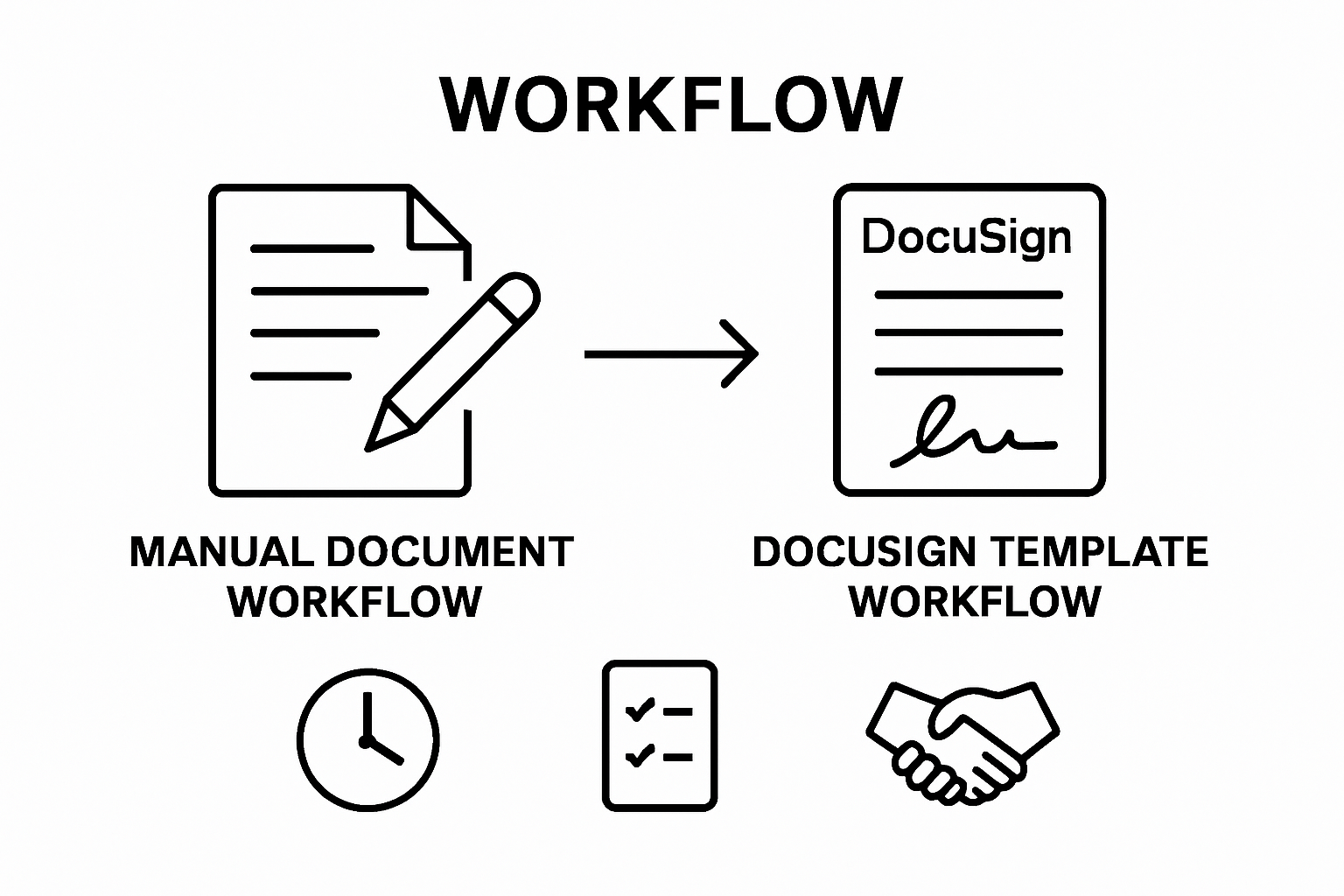
Upgrade Your Workflow With Skypher’s Advanced Automation
If you have struggled with inefficient document workflows, repetitive manual data entry, or complicated approval paths discussed in "Create and Utilize a DocuSign Template Effectively," your team is not alone. The article highlights the need for reliable templates to drive consistency, save time, and eliminate errors. But even the best template cannot solve every bottleneck—especially when your processes involve complex documents like security questionnaires and cross-team collaboration. Are you ready to take automation to the next level?
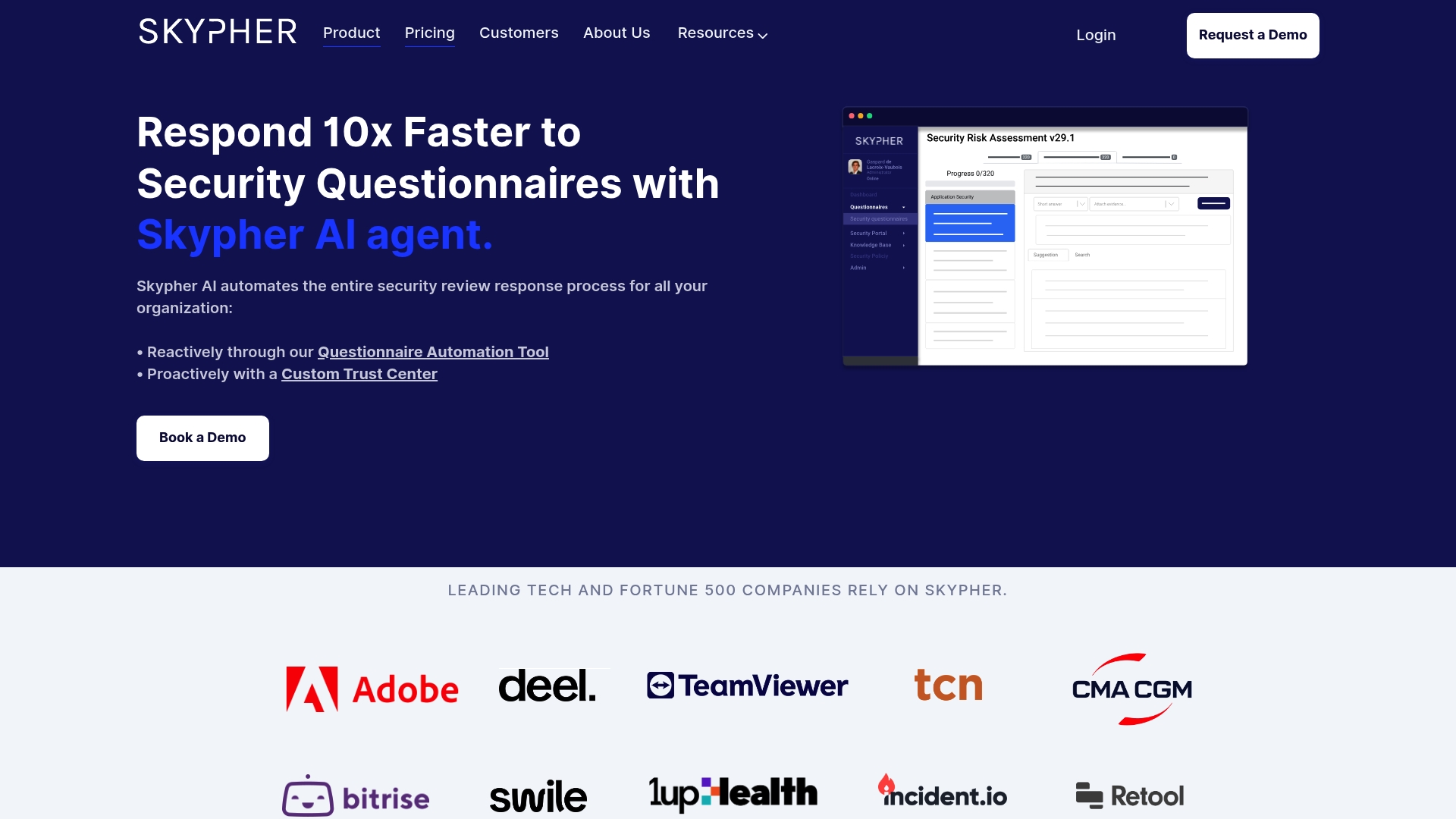
Put your newly-mastered template strategy into action on a platform built for speed, accuracy, and scale. Discover how Skypher’s AI-driven Questionnaire Automation Tool automatically fills out security reviews, enables real-time collaboration, and integrates seamlessly with your workflow. Give your team the power to accelerate deals while keeping controls and compliance solid. Act now and see how Skypher can elevate your DocuSign template use by streamlining approvals, contracts, and critical communications. Start optimizing your workflow today—visit Skypher’s Platform to learn more and get your productivity boost.
Frequently Asked Questions
How do I create a DocuSign template?
To create a DocuSign template, log into your DocuSign account, navigate to the template creation section, and upload the core document. Add strategic placeholder fields for signatures and other inputs, define recipient roles, and save the template with a descriptive name.
What types of documents are best suited for DocuSign templates?
Documents that are frequently used and follow consistent structural patterns, such as sales contracts, non-disclosure agreements, and employee onboarding forms, are ideal candidates for DocuSign templates. Evaluate your organization's workflow to identify these documents.
How can I customize fields in my DocuSign template?
Customize fields by mapping out required inputs, strategically placing signature lines, checkboxes, and dropdown menus. Define recipient roles such as Approver or Manager, and implement smart field logic to enhance user experience based on previous selections.
What steps should I take to test my DocuSign template before use?
To test your DocuSign template, send a test version to yourself or colleagues, verifying field functionality and recipient routing. Simulate real-world scenarios and check for any friction points, ensuring a smooth user experience across different devices.