

Over 90 percent of American businesses consider digital document automation essential for efficiency and compliance. Connecting platforms like Skypher and DocuSign can remove manual roadblocks that slow down critical processes and leave sensitive data at risk. Learn how to set up secure integration credentials, configure API connections, and quickly automate security workflows so your American organization can meet the highest standards for accuracy and speed.
Table of Contents
- Step 1: Prepare Integration Credentials for Skypher and DocuSign
- Step 2: Configure API Connections Between Skypher and DocuSign
- Step 3: Automate Security Questionnaire Workflows Using AI Tools
- Step 4: Enable E-Signature Collection for Completed Documents
- Step 5: Verify Process Automation and Compliance Outcomes
Quick Overview
| Key Insight | Explanation |
|---|---|
| 1. Generate Unique Credentials | Obtain Client ID, Client Secret, and Account ID from DocuSign for API integration. |
| 2. Configure Secure API Connections | Input generated credentials into Skypher to enable seamless data exchange and workflows. |
| 3. Leverage AI for Automation | Utilize AI tools within Skypher to streamline security questionnaire processing and improve efficiency. |
| 4. Set Up E-Signature Workflows | Define routing rules and authentication settings for electronic signatures within Skypher. |
| 5. Validate Automation Processes | Regularly test and audit integrations to ensure compliance and operational effectiveness. |
Step 1: Prepare Integration Credentials for Skypher and DocuSign
Preparing integration credentials for Skypher and DocuSign requires gathering specific authentication details to enable secure API connections. This critical step ensures your security workflow automation runs smoothly and securely.
To begin, you will need to access your DocuSign developer account and generate the necessary credentials. Configure DocuSign authentication by collecting your Client ID, Client Secret, and Account ID. These unique identifiers will serve as the foundational authentication mechanism for connecting Skypher with DocuSign. Make sure to carefully record each credential, as they will be essential for establishing the integration.
Next, navigate to the Skypher platform and locate the third party integration settings. Input the DocuSign credentials you have generated, verifying each field matches the exact information from your DocuSign developer account. This process creates a secure bridge between Skypher and DocuSign, enabling seamless data exchange and workflow automation.
Pro Tip: Always use dedicated integration accounts with minimal necessary permissions to maintain the principle of least privilege and enhance your overall security posture.
Here is a summary of the key integration credentials required for Skypher and DocuSign, along with their specific purposes:
| Credential | Purpose | Where to Obtain |
|---|---|---|
| Client ID | Identifies app for API authorization | DocuSign developer account |
| Client Secret | Authenticates app and protects API transactions | DocuSign developer account |
| Account ID | Specifies the DocuSign business account | DocuSign developer account |
| Service URI | Endpoint for establishing secure API connections | DocuSign API documentation |
Step 2: Configure API Connections Between Skypher and DocuSign
Configuring API connections between Skypher and DocuSign requires precise authentication setup to establish a secure and seamless integration. This step transforms your security review process by enabling direct communication between these powerful platforms.
Begin by accessing your DocuSign developer account and preparing to configure the service connection with critical authentication parameters. You will need to collect several key pieces of information essential for creating a robust API connection: the Client ID, Client Secret, Account ID, and Service URI. These credentials act as the digital keys that unlock secure data exchange between Skypher and DocuSign.
Once you have gathered these credentials, navigate to Skypher's integration settings and input the DocuSign authentication details carefully. Verify that each field matches the exact information from your DocuSign developer account. This meticulous process ensures a reliable connection that enables automated security questionnaire workflows and seamless data synchronization between platforms. Streamline your document workflows by completing this integration with precision and attention to detail.
Pro Tip: Always use application specific credentials with the minimal required permissions to maintain robust security standards and limit potential vulnerability points in your integration.
Step 3: Automate Security Questionnaire Workflows Using AI Tools
Transforming security questionnaire processes requires leveraging advanced AI technologies that dramatically reduce manual effort and increase response accuracy. This step focuses on implementing intelligent automation strategies that will revolutionize your security review workflows.
Begin by configuring AI-driven security workflow automation within your Skypher platform. The AI tools will intelligently parse incoming security questionnaires, identify relevant response patterns, and generate precise answers based on your organization's historical documentation and compliance standards. By utilizing machine learning algorithms, these tools can significantly reduce response times from hours to minutes while maintaining exceptional accuracy.
Utilize the comprehensive security questionnaire automation guide to map out your existing response processes and identify key areas where AI can streamline repetitive tasks. Train the system with previous questionnaire responses, enabling the AI to develop increasingly sophisticated understanding of your organization's security protocols and standardized answer templates. This continuous learning approach ensures that your automated workflows become more intelligent and efficient with each subsequent security review.
Pro Tip: Regularly review and calibrate your AI automation settings to ensure the system maintains high accuracy and adapts to evolving security standards and organizational changes.
This table compares manual and AI-driven security questionnaire workflows for better decision-making:
| Workflow Type | Time to Complete | Consistency Level | Required Oversight |
|---|---|---|---|
| Manual | Several hours | Varies by user | High, needs frequent checks |
| AI-Driven Automation | Minutes | Highly consistent | Low, periodic audits only |
Step 4: Enable E-Signature Collection for Completed Documents
Transforming document workflows requires seamless electronic signature capabilities that expedite approvals and reduce administrative overhead. This step focuses on configuring the e-signature collection process to ensure smooth and legally compliant document execution.

Configure your DocuSign integration settings by accessing the Skypher platform and navigating to the signature management section. You will need to specify routing rules that determine the sequence of signers, set up authentication requirements, and establish document verification protocols. The system allows you to define specific permissions that control who can sign which documents and in what order, ensuring a structured and secure signature workflow.
Proceed to map out your organization specific signature workflows within the Skypher platform. This involves identifying key stakeholders who require document approval, setting up conditional routing based on document types, and establishing automated notification triggers that alert signers when their review is required. By creating these intelligent signature workflows, you eliminate manual routing processes and significantly reduce the time required to obtain critical approvals.
Pro Tip: Always implement multifactor authentication for signature workflows to add an extra layer of security and validate the identity of each signatory.
Step 5: Verify Process Automation and Compliance Outcomes
Validating the effectiveness of your automated security review workflows is critical to ensuring accuracy, compliance, and operational efficiency. This step focuses on comprehensive verification mechanisms that confirm your integration between Skypher and DocuSign performs exactly as intended.
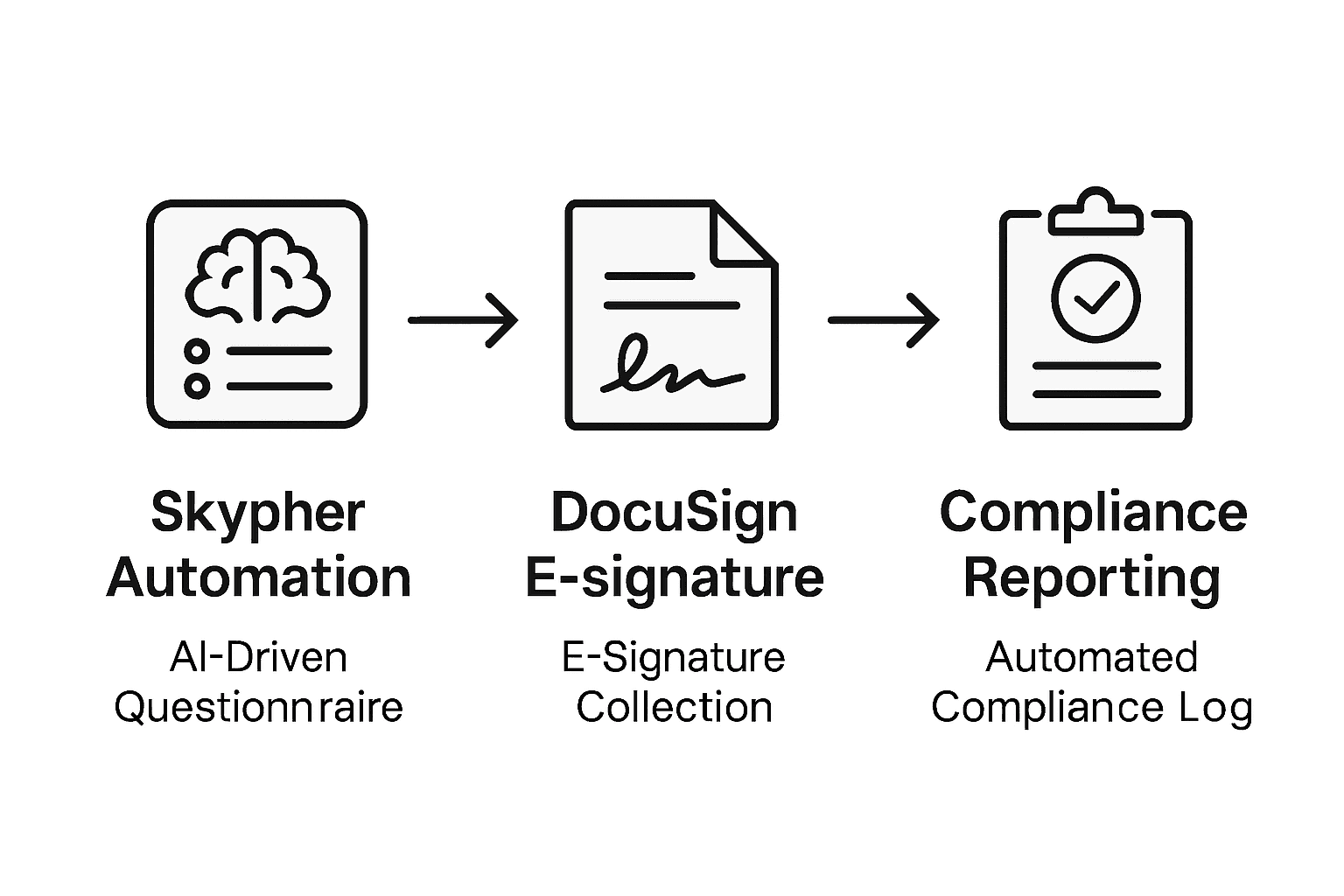
Authorize and test API connections by running comprehensive diagnostic checks within the Skypher platform. Leverage the system's built-in verification tools to simulate complete document processing workflows, tracking each step from initial questionnaire receipt through final signature collection. Pay special attention to compliance validation points, ensuring that all automated responses adhere to your organization's predefined security standards and regulatory requirements.
Utilize the platform's advanced reporting features to generate detailed logs that capture every interaction, mapping DocuSign Connect messages to track the precise journey of each security document. These comprehensive audit trails will provide transparent insights into your automation performance, highlighting any potential gaps or optimization opportunities in your workflow. Review the generated reports methodically, cross referencing automated responses against your established compliance benchmarks to confirm consistent accuracy.
Pro Tip: Implement quarterly comprehensive audits of your automation workflows to proactively identify and address any emerging compliance or performance inconsistencies.
Accelerate Your Security Reviews with Skypher and DocuSign Integration
Managing complex security questionnaires and automating document workflows can be overwhelming and time-consuming. This article highlights the critical challenges of preparing integration credentials, configuring API connections, and automating responses while ensuring compliance and secure e-signature collection. Skypher addresses these pain points with its AI-powered Questionnaire Automation Tool that streamlines these exact processes by seamlessly integrating with DocuSign and other platforms.
Skypher empowers medium to large organizations especially in tech and finance to automate security reviews faster and with higher accuracy. Enjoy benefits like real-time collaboration, customizable Trust Centers, and extensive API integrations that reduce manual effort and enhance security posture. Discover how you can transform your security workflows and reduce turnaround times by visiting Skypher’s landing page.

Ready to streamline your security questionnaire processes and automate document approvals with precision? Explore how Skypher’s AI-driven solutions fully support DocuSign integration and beyond by visiting Skypher. Take the next step toward operational efficiency and compliance excellence now.
Frequently Asked Questions
How do I prepare integration credentials for Skypher and DocuSign?
To prepare integration credentials for Skypher and DocuSign, access your DocuSign developer account to generate your Client ID, Client Secret, and Account ID. Record each credential carefully as they are essential for establishing a secure connection between the two platforms.
What are the key steps to configure API connections between Skypher and DocuSign?
To configure API connections, gather your Client ID, Client Secret, Account ID, and Service URI from your DocuSign developer account. Input these details into Skypher’s integration settings to establish a secure communication channel for seamless automation.
How can I automate security questionnaire workflows using AI tools?
You can automate security questionnaire workflows by configuring AI-driven automation within the Skypher platform. Train the AI using past questionnaire responses to improve accuracy, potentially reducing response times from hours to just minutes.
What should I do to set up e-signature collection for documents?
To set up e-signature collection, navigate to the signature management section within the Skypher platform and specify routing rules, authentication requirements, and document verification protocols. Ensure to define who can sign which documents and set up automated notifications to streamline the approval process.
How do I verify the effectiveness of my automated workflows?
To verify your automated workflows, run diagnostic checks within the Skypher platform to simulate document processing from start to finish. Review generated reports to ensure compliance with your security standards and address any discrepancies found in the workflow.