

TL;DR:
- Proper Vanta account access setup is vital for seamless login, integration configuration, and effective compliance management.
- Confirm the correct regional URL, assign roles appropriately, and complete Okta app integrations with user group assignments before initial login.
Security and compliance teams know the frustration well: you need to pull up evidence for an audit, a vendor questionnaire is due in hours, and your Vanta login is throwing errors you've never seen before. The clock is ticking, and the problem isn't the platform — it's a misconfigured integration or a role assignment someone skipped during onboarding. This guide walks you through everything you need to know about Vanta account access: the right URLs, permission prerequisites, Okta SSO setup, AWS integration best practices, and how to verify that every user on your team can actually get in and do their job.
Table of Contents
- Understanding Vanta login essentials and prerequisites
- Preparing your environment: Configuring Okta and user assignments for seamless SSO login
- Executing the Vanta login and managing multi-account integrations effectively
- Verifying access and troubleshooting common Vanta login issues
- Why mastering Vanta login setup is crucial for security and compliance success
- Streamline your security workflows with Skypher's automation tools
- Frequently asked questions
Key Takeaways
| Point | Details |
|---|---|
| Use correct login URL | Access Vanta using your correct regional URL for uninterrupted service. |
| Complete Okta integration | Fully connect and assign Okta apps to users to eliminate SSO login errors. |
| Assign user roles carefully | Grant admin/editor roles and correct group visibility to maintain secure access. |
| Separate AWS account types | Avoid mixing individual and organization-level AWS connections in one workspace. |
| Verify and troubleshoot regularly | Review personnel and roles to sustain seamless login and compliance operations. |
Understanding Vanta login essentials and prerequisites
Before anyone on your team attempts a Vanta sign in, you need to confirm you're pointing at the right URL. There are two primary Vanta dashboard access points depending on your instance. US-based customers use app.vanta.com, while customers on the EU instance use app.eu.vanta.com. Hitting the wrong URL doesn't just fail silently — it can create confusion about whether credentials are wrong, whether SSO is broken, or whether the account even exists.
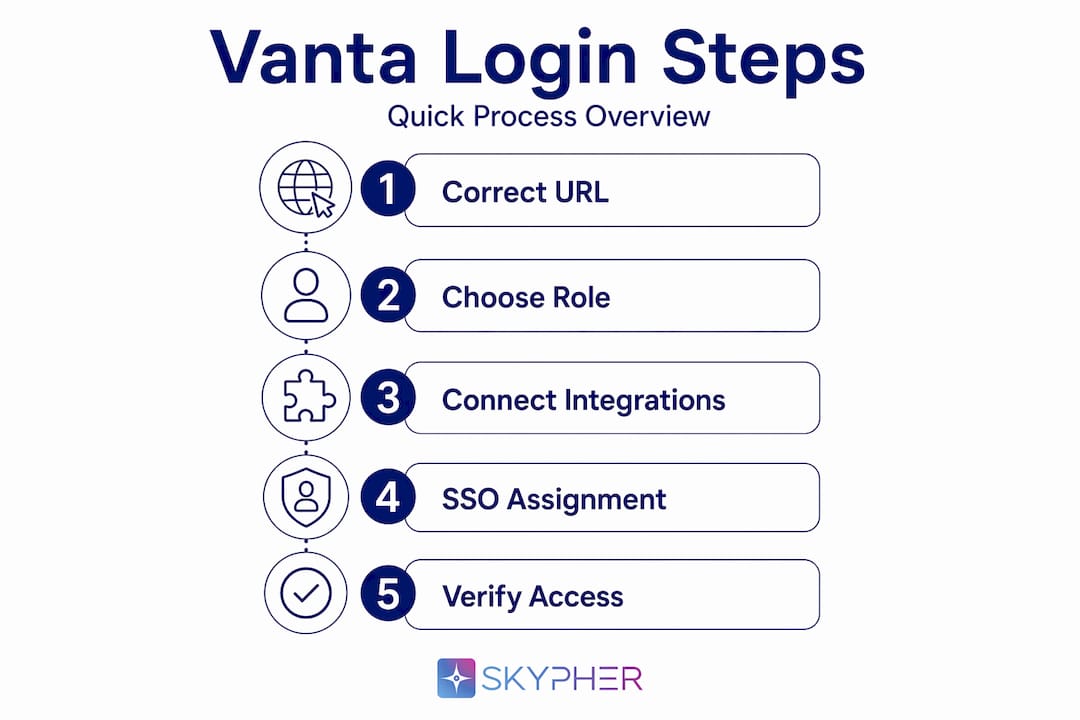
Beyond the URL, you need to understand the role structure before login configuration begins. Connecting integrations like AWS requires administrator or editor permissions. Without those, the integration setup screens are either hidden or read-only, and users who attempt to configure access will hit walls that look like bugs but are actually permission gates.
Here's a quick breakdown of the core Vanta user roles and what each allows:
| Role | Can configure integrations | Can manage users | Can view compliance reports |
|---|---|---|---|
| Administrator | Yes | Yes | Yes |
| Editor | Yes | No | Yes |
| Collaborator | No | No | Yes (limited) |
| Viewer | No | No | Yes (read-only) |
Getting role assignments right before login is the single fastest way to prevent a wave of access tickets after rollout. The most common scenario in larger organizations: a compliance engineer is granted Collaborator access during a rushed onboarding, then spends two days wondering why they can't connect an AWS account that appears on their task list.
Key prerequisites before your first login attempt:
- Confirm whether your organization uses the US or EU Vanta instance
- Verify your account role is Administrator or Editor if you need to configure integrations
- Ensure your email domain is registered with your Vanta workspace
- Confirm your identity provider (Google, Okta, or email/password) matches what your admin configured
You can get a solid overview of how Vanta fits into a broader compliance stack by reviewing this Vanta tool overview from Skypher's comparison guide.
Preparing your environment: Configuring Okta and user assignments for seamless SSO login
Single sign-on via Okta is where most enterprise Vanta login problems originate. The error message "Vanta encountered a problem" is almost always traced back to an incomplete Okta app connection, and 100% of SSO login failures from this error can be resolved in under 10 minutes by an admin who knows where to look.
Here's the step-by-step process to configure Okta correctly:
- Log into your Vanta workspace as an Administrator.
- Navigate to Settings > Integrations and locate the Okta tile.
- Click Edit connection (not just "View"). Many admins stop at the view screen and assume the connection is complete.
- Walk through every tab in the Okta integration setup, including the Assignments tab.
- In the Okta admin dashboard, navigate to your Vanta app assignment and assign users or groups who need login access.
- Configure group visibility settings so Vanta can see the correct Okta groups.
- Save and test the connection using a non-admin account before rolling out to the team.
The Assignments tab is the single most skipped step. Admins assume that connecting the Okta app in Vanta is enough, but without explicitly assigning the Vanta application to users in the Okta dashboard, those users receive the "encountered a problem" error every single time they attempt Vanta portal sign in via SSO.
| Setup step | Commonly skipped | Impact if missed |
|---|---|---|
| Edit connection (not just view) | Yes | Partial setup, no error shown |
| Assignments tab configuration | Yes (most common) | All assigned users blocked from SSO login |
| Group visibility configuration | Sometimes | Users can log in but see no data |
| Test with non-admin account | Often | Problems go undetected until rollout |

Pro Tip: Create a dedicated test user account in Okta with no elevated permissions. Run every SSO login test through that account before declaring setup complete. Admin accounts sometimes bypass SSO flows that trip up regular users.
For additional context on SSO configuration patterns that apply across compliance platforms, see these Okta SSO setup tips, and consult your IT team using resources like this guide on IT admin troubleshooting for SSO if Okta admin access is managed outside your compliance function.
Executing the Vanta login and managing multi-account integrations effectively
Once SSO is configured and role assignments are confirmed, the actual login process is straightforward. But "straightforward" assumes you've dealt with one major hidden complexity: your AWS environment.
Step-by-step Vanta login and integration setup:
- Navigate to your instance URL (app.vanta.com or app.eu.vanta.com).
- Select your login method: Google, Okta SSO, or email/password.
- Once inside, confirm you land on the correct workspace if your organization uses multiple.
- Navigate to Settings > Integrations and verify existing connections before adding new ones.
- Before connecting AWS, determine whether you're connecting individual accounts or an AWS Organization.
That last step matters more than most admins realize. You cannot mix individual and organization-level AWS connections within a single Vanta workspace. If you have one individual AWS account connected and attempt to add an organization-level connection, the sync fails without a clear error message pointing to the conflict.
Individual AWS account vs. organization-level connection:
| Factor | Individual account | Organization-level connection |
|---|---|---|
| Best for | Small teams, single AWS account | Enterprises with multiple AWS accounts |
| Setup complexity | Low | Higher (requires org-level IAM role) |
| Risk of sync failure from mixed setup | N/A | High if individual accounts remain connected |
| Recommended cleanup before switching | N/A | Remove all individual accounts first |
- Before switching to organization-level: remove every individual AWS account connection from the Vanta workspace.
- Document which AWS accounts are connected before making any changes.
- Confirm IAM role permissions at the organization level before attempting the new connection.
- After switching, run a manual sync and verify data appears correctly in your compliance dashboard.
Pro Tip: If your team manages more than three AWS accounts, move to organization-level connection from day one. Retrofitting it later requires disconnecting and reconnecting accounts, which temporarily breaks compliance evidence collection and can leave gaps in your audit trail.
For a deeper look at AWS compliance automation in the context of SOC 2, Skypher's guide covers how these integration decisions affect your overall reporting posture.
Verifying access and troubleshooting common Vanta login issues
A successful Vanta sign in doesn't mean every user is actually operational. The two most common post-login problems are unscoped personnel and missing role assignments, and both are invisible until a user hits a wall trying to complete a task.
After importing users or completing your SSO setup, go directly to the People Page in Vanta. Exporting and reviewing the People Page is the fastest way to surface unscoped or unlinked personnel — users who technically have login access but aren't tied to your compliance framework and therefore appear in neither reports nor task assignments.
"Unscoped users don't generate errors. They just silently disappear from your compliance picture, which is exactly the kind of gap that surfaces during an audit and not before."
Once people are correctly scoped, the next check is role verification for access requests. Users need at minimum the Collaborator role to view and respond to access requests. Without it, they see no pending tasks — not an error, just a blank screen — which makes it look like there's nothing to do when there actually is.
Verification checklist after login:
- Export the People Page and cross-reference against your expected user list
- Confirm all compliance-relevant personnel are scoped and linked to their identity data
- Verify each user's role matches what their job function requires
- Enable notifications for task reminders — missing this setting contributes significantly to workflow delays
- Recheck Okta assignment and group configuration if any user reports SSO failure after the initial setup
Pro Tip: Schedule a monthly People Page audit as part of your compliance calendar. Personnel changes are the most common cause of access drift, where former employees remain scoped or new team members never get properly linked.
For a structured approach to verifying team access in Vanta, Skypher's guide on secure team collaboration covers how to build this into a repeatable process.
Why mastering Vanta login setup is crucial for security and compliance success
Here's a view most compliance teams don't want to hear: the reason your Vanta workflows break isn't the tool — it's that access setup is treated as a one-time task rather than an ongoing operational discipline.
Most organizations invest significant time selecting and configuring a compliance platform, then hand off the access management to IT or an ops team member who isn't embedded in the compliance workflow. The result is predictable. 80% of initial Okta integration setups miss the Vanta app assignment in the Okta dashboard, causing persistent login failures that get misdiagnosed as credential problems, SSO errors, or even platform bugs.
The organizations that get the most out of compliance platforms are the ones where the compliance team owns the identity layer, not just the framework. That means the person who understands what a Collaborator role does versus an Editor role is the same person configuring user assignments — not a generalist IT admin working from a ticket.
This matters disproportionately for mid-market companies. Enterprise teams have dedicated IAM (identity and access management) teams who catch these gaps. Smaller teams often don't — but they're running the same compliance frameworks and the same audit cycles. Getting login setup right the first time isn't a nice-to-have; it's the difference between a clean SOC 2 cycle and one full of evidence gaps and user complaints.
There's also a second-order effect that rarely gets discussed. When access management is shaky, teams lose confidence in the tool itself. People start maintaining shadow spreadsheets or duplicate trackers because they can't trust that Vanta is showing them the full picture. Fixing that cultural problem is significantly harder than fixing an Okta assignment.
The automation patterns that reduce that burden go hand in hand with login setup — because automation only works when the right people have access to the right data from the start.
Streamline your security workflows with Skypher's automation tools
Getting your Vanta login configured correctly is a foundation, not a finish line. Once your team has reliable access to your compliance platform, the next bottleneck for most security and compliance teams is the volume of security questionnaires that demand your attention every quarter.

Skypher's security questionnaire automation platform is built specifically for teams who've already done the hard work of getting their compliance stack in order and need to move faster on the response side. The AI recommendation engine pulls from your existing documentation, connected knowledge bases, and prior responses to generate accurate answers in under a minute — even for questionnaires with 200-plus questions. And with Skypher's import and export workflows supporting every major format, your team spends time reviewing responses rather than reformatting them.
Frequently asked questions
What is the primary URL to access Vanta login?
The main Vanta login URL is app.vanta.com, with a separate EU instance available at app.eu.vanta.com. Using the wrong regional URL is a common source of login confusion that has nothing to do with credentials.
Why do I get the error "Vanta encountered a problem" when logging in with Okta?
This error appears when the Okta app integration in Vanta is incomplete. An admin can fix SSO login failures in under 10 minutes by editing the Okta connection in Vanta's Integrations page and completing all setup steps, including the Assignments tab.
How do I ensure users can log in via single sign-on with Okta?
Admins must assign the Vanta app to users in the Okta admin dashboard and configure group visibility. Users who are not explicitly assigned will not be able to authenticate via SSO regardless of their credentials.
Can I mix individual and organization-level AWS account connections in Vanta?
No. Mixing AWS connection types in a single Vanta workspace causes sync failures. You must remove all individual account connections before switching to an organization-level connection.
What role is required for Vanta users to view access requests after logging in?
Users need at minimum the Collaborator role in Vanta to view access requests and receive task notifications. Without it, their dashboard appears empty, which often gets mistaken for a login or data sync issue.